


1.Introduction
WCFM AI Suite adds artificial intelligence capabilities to your multi-vendor marketplace, enabling vendors to:
- Generate product titles and descriptions from a short text prompt or a product image.
- Enhance product images to create clean, professional, marketplace-ready visuals.
- Enhance any image in the Media Library and replace the original image in place.
- Generate AI-powered articles complete with titles, excerpts, content, and enhanced featured images.
- Use AI through a flexible credit system, with monthly free credits and optional credit pack purchases when additional usage is needed.
As the marketplace owner, you remain in complete control. Choose your preferred AI provider, enable or disable individual features, configure monthly credit allowances for each vendor group, allow vendors to purchase additional AI credits, and monitor marketplace-wide AI usage through built-in analytics and insights.
 Was this helpful?
2.Minimum Requirements
WordPress Version: 6.0 or greater
WooCommerce Version: 7.0 or greater
WC Frontend Manager Version: 6.7.28 or greater
WC Multivendor Marketplace Version: 3.7.4 or greater
PHP Version: 7.4 or greater**
MySQL: 5.6 or greater
3.For Admins
This section is strictly for marketplace owners and site administrators. It covers how to connect the plugin to your chosen AI provider, configure global cost settings, allocate monthly credit allowances to different vendor groups, and monitor overall AI usage across your entire platform.
3.1.Get an AI API key
The plugin talks to an AI provider on your behalf. Create a key with whichever you prefer:
- OpenAI: https://platform.openai.com/api-keys
- Google Gemini: https://aistudio.google.com/app/apikey
💡 AI usage is billed by the provider to your account. The plugin’s “credits” are how you ration that usage among vendors — see #3.3.
3.2.Configure settings
Go to WCFM > Settings and open the AI Suite section.
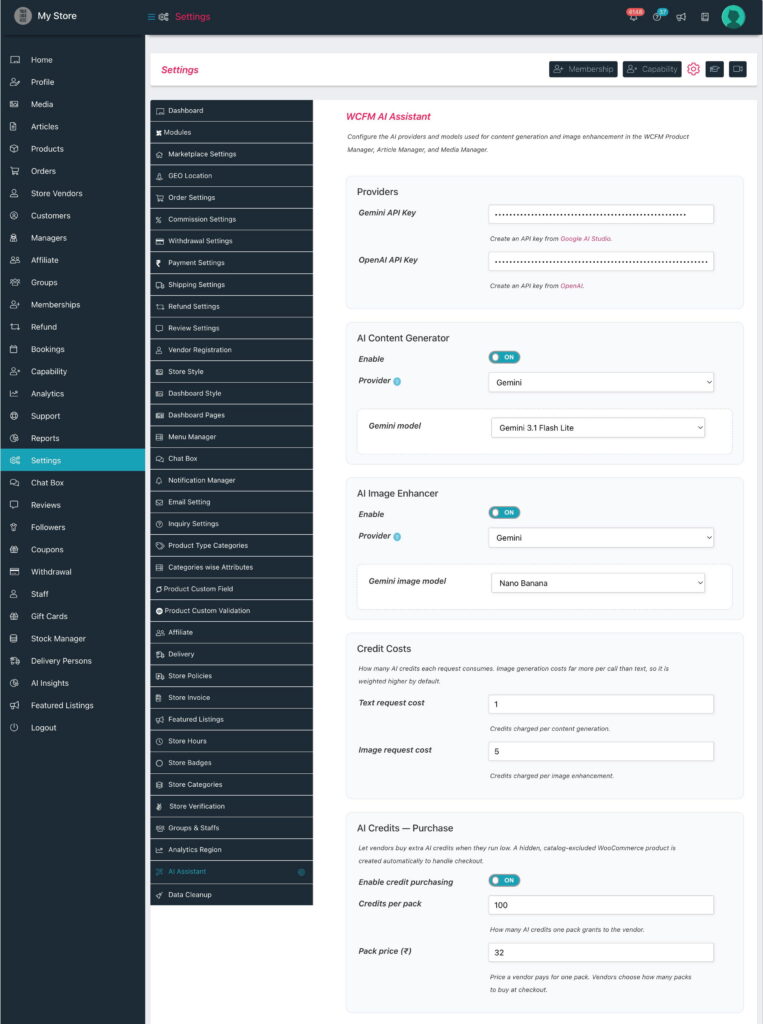
Fill it in top to bottom:
- Providers — paste your Gemini API Key and/or OpenAI API Key.
- AI Content Generator — turn Enable to ON, then pick the Provider (OpenAI or Gemini). The matching model field — OpenAI model or Gemini model — appears for the chosen provider. This drives all text writing: both product copy and articles.
- AI Image Enhancer — turn Enable to ON, then pick its Provider and the matching OpenAI image model / Gemini image model. This drives image enhancement everywhere — the product editor, the Article editor and the Media page.
- Credit Costs (Marketplace only) — Text request cost and Image request cost: how many credits each request spends. Defaults: Text = 1, Image = 10 (image generation costs the provider far more, hence the higher weight).
-
AI Credits — Purchase (Marketplace only) — optionally let vendors buy extra credits:
- Enable credit purchasing — turn ON to switch the feature on.
- Credits per pack — how many credits one pack grants the vendor (default 100).
- Pack price — what a vendor pays for one pack, in your store currency. Vendors choose how many packs to buy at checkout.
The plugin auto-creates a hidden, catalog-excluded WooCommerce product to handle checkout — you never manage it by hand. The vendor side is covered in #4.7.
Click Save at the bottom of the WCFM settings form.
ℹ️ Single-shop note: the Credit Costs and AI Credits — Purchase blocks appear only when WCFM Marketplace is active. In a WCFM-only shop the admin / shop managers have unlimited AI use, so there’s no credit economy to configure.
3.3.How credits work
Every AI request spends credits:
- A text generation costs the Text request cost (default 1).
- An image enhancement costs the Image request cost (default 10).
Each vendor has a monthly allowance. The allowance resets on the 1st of each month. Usage is tracked automatically and shown to the vendor in their dashboard widget and AI Usage report.
ℹ️ A vendor whose allowance is set to empty or 0 is treated as Unlimited. Set an explicit number to cap the monthly free credits, or -1 for no free credits — the vendor then starts at zero and must buy a credit pack to use AI. -1 does not block the tool; to disable AI entirely switch Enable Suite off (see #3.4).
Let vendors buy more credits (optional). In Settings > AI Suite > AI Credits — Purchase, turn on Enable credit purchasing and set a pack price and credits per pack. The plugin creates a hidden, catalog-excluded WooCommerce product for checkout; when a vendor buys a pack, the credits are added to their purchased balance, which never resets and is spent only after the monthly allowance is used up.
3.4.Capabilities & credit limits
You control access with capabilities. These live on the Capability settings — both the global default and per group (via WCFM Groups & Staffs).
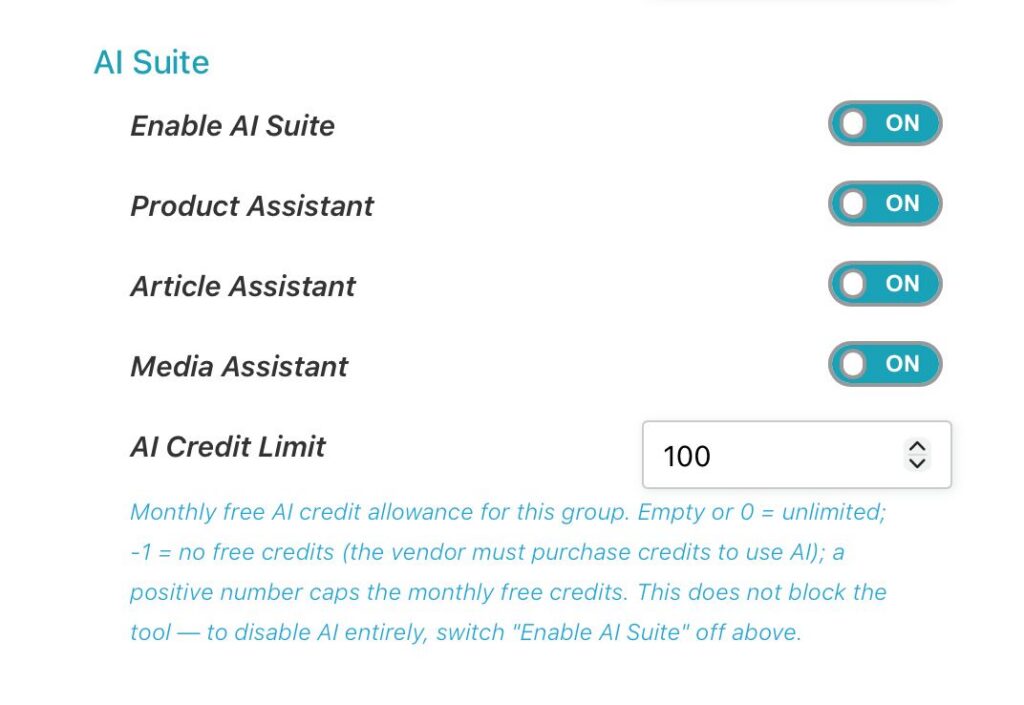
The AI Suite capability section has:
| Setting | What it does |
|---|---|
| Enable AI Suite | Master switch. ON = the group may use AI; OFF = blocked entirely. |
| Product Assistant | ON = may use AI on the Product editor (copy + image). |
| Article Assistant | ON = may use AI in the Article editor (title + excerpt + body). |
| Media Assistant | ON = may use the Enhance with AI button on the Media page. |
| AI Credit Limit | Monthly free credit allowance for this group. Empty or 0 = Unlimited; -1 = no free credits (the vendor must purchase a credit pack to use AI — this does not block the tool); a positive number = that monthly free cap. To disable AI entirely, use Enable AI Suite above. |
To give different vendors different allowances (e.g., a Basic vs Pro membership):
- Create or open a vendor Group (WCFM Groups & Staffs) — or a Membership plan that maps to a group.
- Set that group’s AI Credit Limit (e.g., Basic = 50, Pro = 500, or empty for Unlimited).
- Assign vendors to the group (or let them subscribe to the membership). Their AI allowance follows their group automatically.
3.5.Monitor vendor usage
Open the Vendors page from the WCFM dashboard (Dashboard > Store Vendors). Each vendor row shows their AI credits used this month / their limit (e.g., 12 / 50, or 12 / ∞ for unlimited), marked with a robot icon.
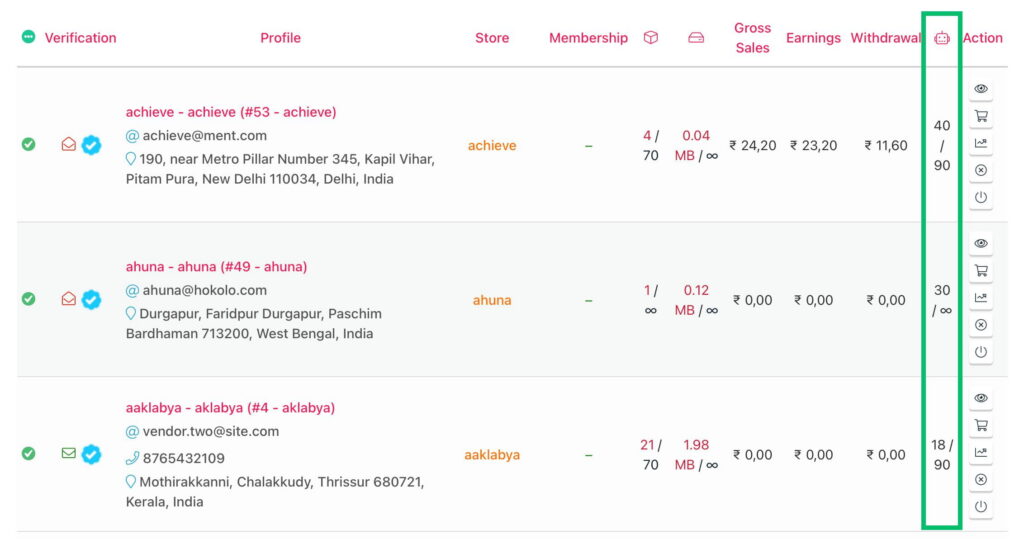
3.6.AI Insights (marketplace analytics)
Open AI Insights from the dashboard menu (visible to admins and shop managers, not vendors) for a marketplace-wide view of how AI is used — and, most importantly, what it earns you.
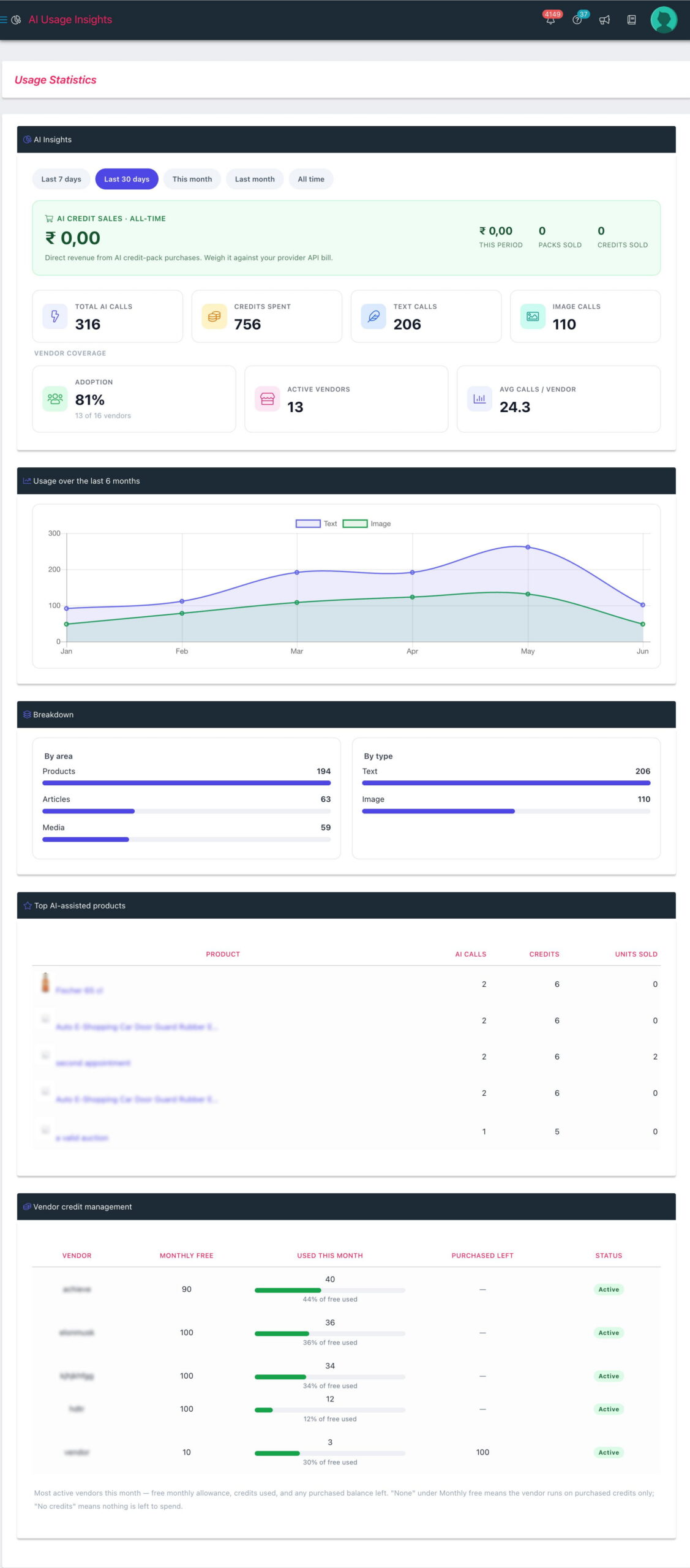
- AI credit sales (headline): when credit purchasing is enabled, a panel at the top shows your all-time revenue from AI credit-pack sales, plus this period’s revenue, packs sold and credits sold. This is the one ROI figure with no guesswork — weigh it against your AI provider’s API bill to judge whether the tool is making or costing you money. (Hidden when purchasing is off.)
- Usage cards: Total AI calls, Credits spent, Text calls and Image calls — for the selected period (last 7 / 30 days, this / last month, or all time).
- Vendor coverage: Adoption (how many of your vendors have ever used AI), Active vendors, and average calls per vendor.
- Usage over the last 6 months: a line chart of text vs image calls — shows whether adoption is growing.
- Breakdown: calls by area (Products / Articles / Media) and by type (Text / Image).
- Vendor credit management: each active vendor’s monthly free allowance, used this month (with a utilization bar), purchased balance left, and a status badge — Active, Unlimited, or No credits (out of both free and purchased). Vendors on a purchase-only plan show “None” under monthly free, so you can tell at a glance who’s on free credits, who’s bought packs, and who’s run dry.
- Top AI-assisted products: the products that have had the most AI work, with the call count and their sales — so you can see where the effort is going.
ℹ️ In a WCFM-only shop (no Marketplace) there are no vendors, so the Vendor coverage cards and the Vendor credit management table are hidden — you still get your own totals, the trend, the breakdowns and the top-products list.
4.For Vendors
This section is a dedicated guide for marketplace sellers. Every action detailed below takes place entirely within your front-end Store Manager / Dashboard (not the WordPress admin area). It will walk you through monitoring your credit limits, generating text for products and articles, and enhancing your photography to marketplace standards.
4.1.AI Suite Status widget
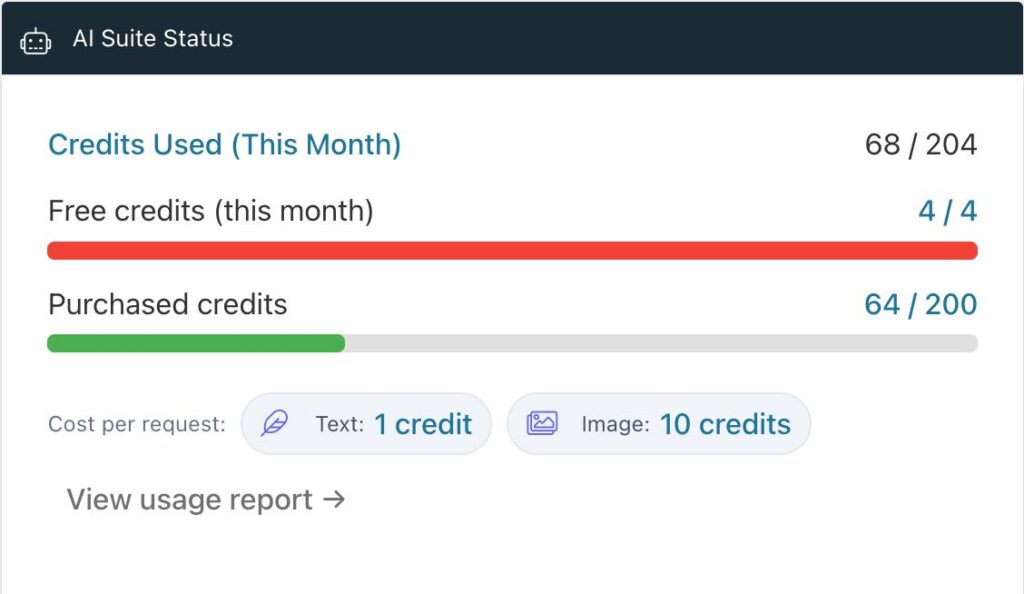
On your dashboard home you’ll see an AI Suite Status widget showing Credits Used (This Month) and Purchased credits with a progress bar, and a View usage report → link.
ℹ️ Purchased credits (total): The vendor’s purchased credit balance at the beginning of the month, plus any credit packs purchased during the month. Unlike monthly free credits, purchased credits never expire and are carried forward until used.
4.2.Write product copy with AI
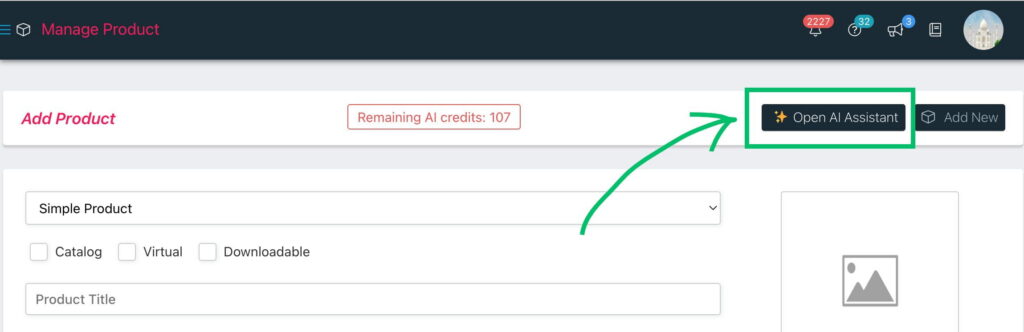
- Go to Products and add or edit a product.
- In the top toolbar, click the Open AI Assistant button.
- The AI popup opens on the Write Copy tab. Choose an input mode:
- From Text Prompt — type a short description (e.g., “Organic cotton baby onesie, soft, hypoallergenic”).
- From Product Image — pick one or more of the product’s photos and let the AI describe them.
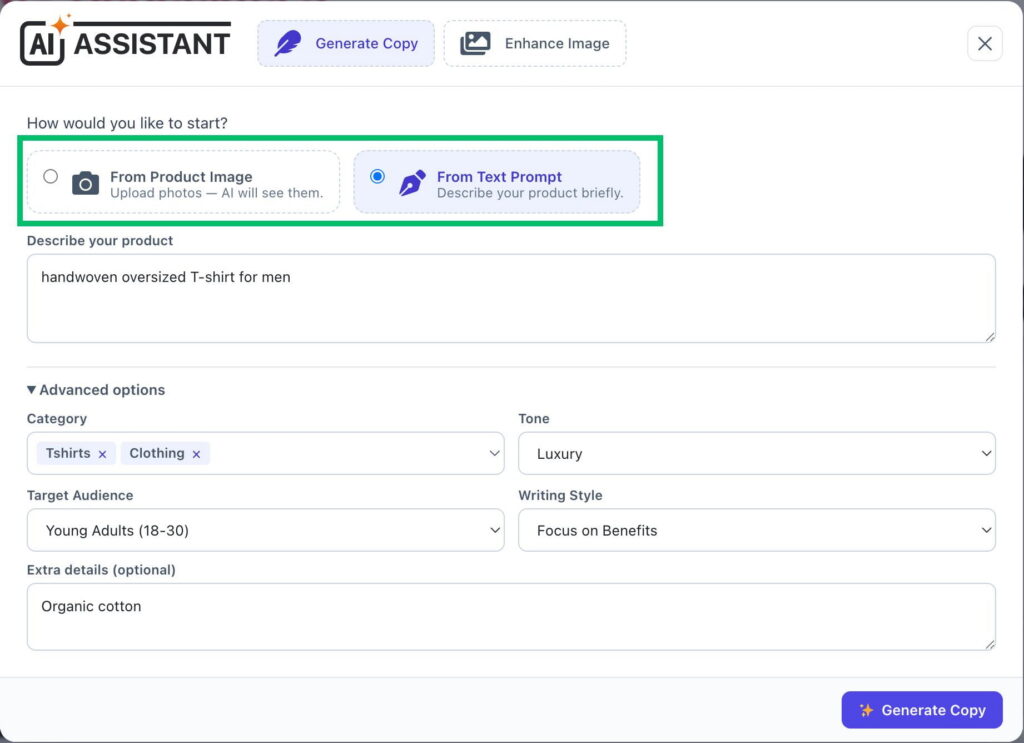
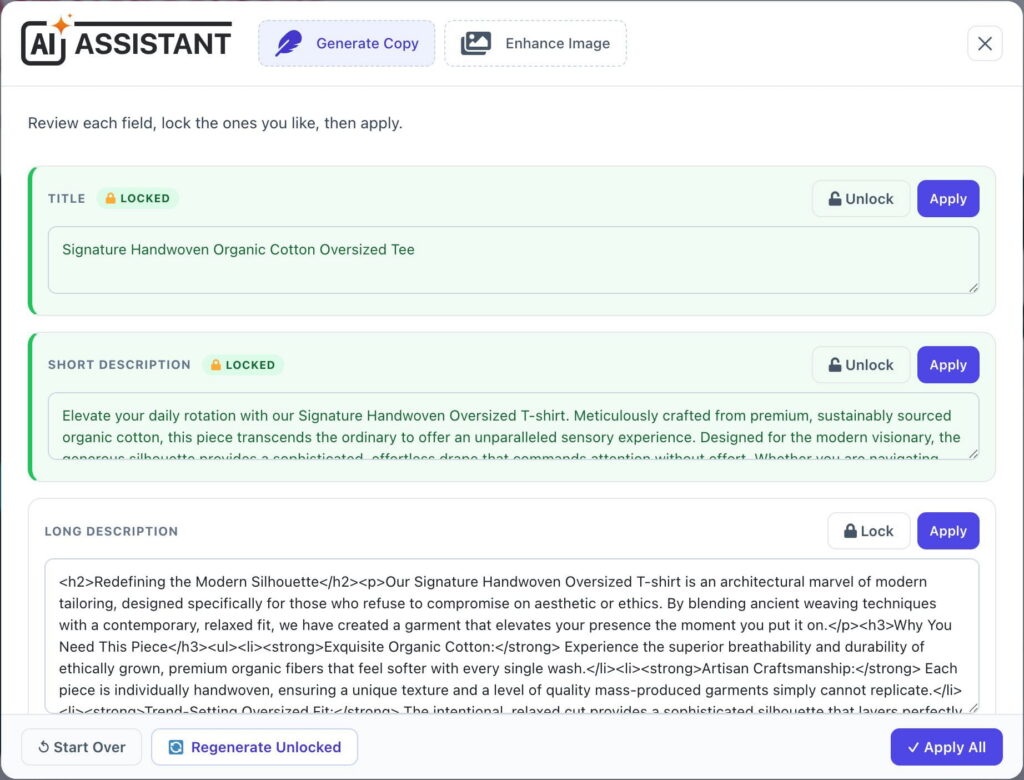
- Click Generate Copy. After a few seconds you get three results: Title, Short Description, and Long Description.
- Refine the results:
- 🔒 Lock a card you’re happy with, then click Regenerate Unlocked to redo only the others (locked text is kept and used as context).
- Apply a single field, or Apply All to fill every field at once.
- Start Over to clear everything.
- Save the product as usual.
💡 Tip: setting the product’s category before generating gives more relevant copy.
4.3.Enhance product images
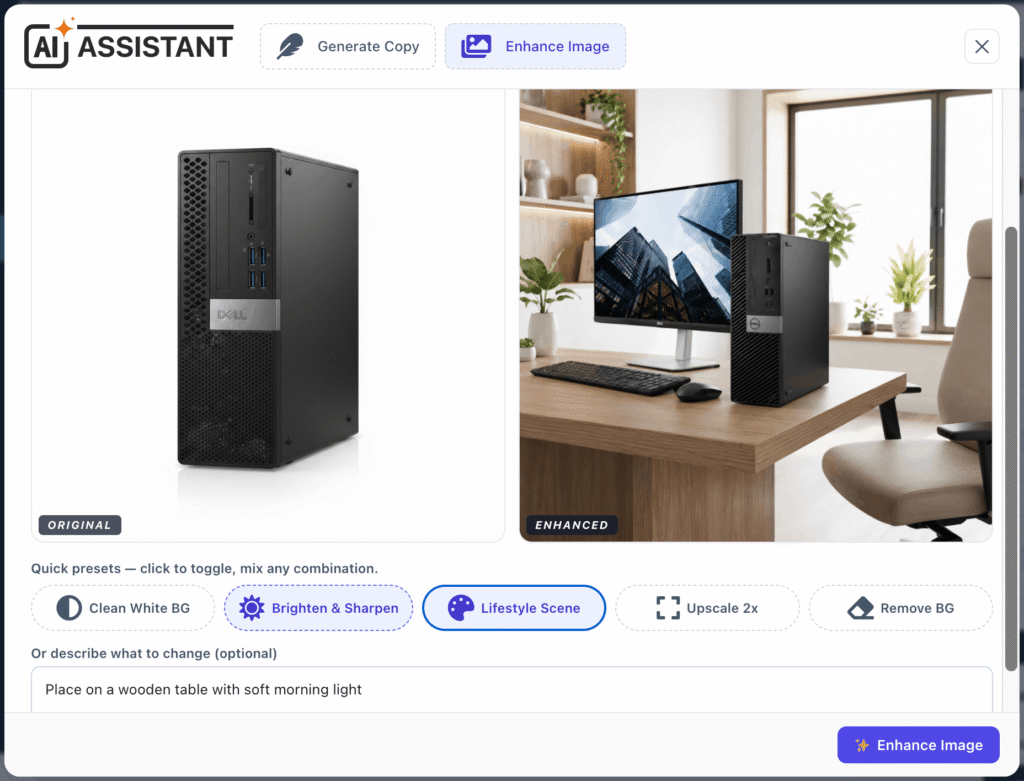
- In the product editor, open the AI popup’s Enhance Image tab (or use the Enhance Image button near the product gallery).
- Choose one of the product’s images.
- Toggle one or more presets (you can combine several):
- Clean White BG
- Brighten & Sharpen
- Lifestyle Scene
- Upscale 2x
- Remove BG.
- (Optional) type a specific instruction, then click Enhance Image.
- Compare the Original / Enhanced result.
- Insert / Apply to add the enhanced image to the product.
- Refine Result to run another pass on the new image.
- Start Over to pick a different image.
4.4.Write articles with AI
If vendor publish Articles (blog posts), the AI Assistant works like the product one but with options tuned for blog writing rather than product copy.
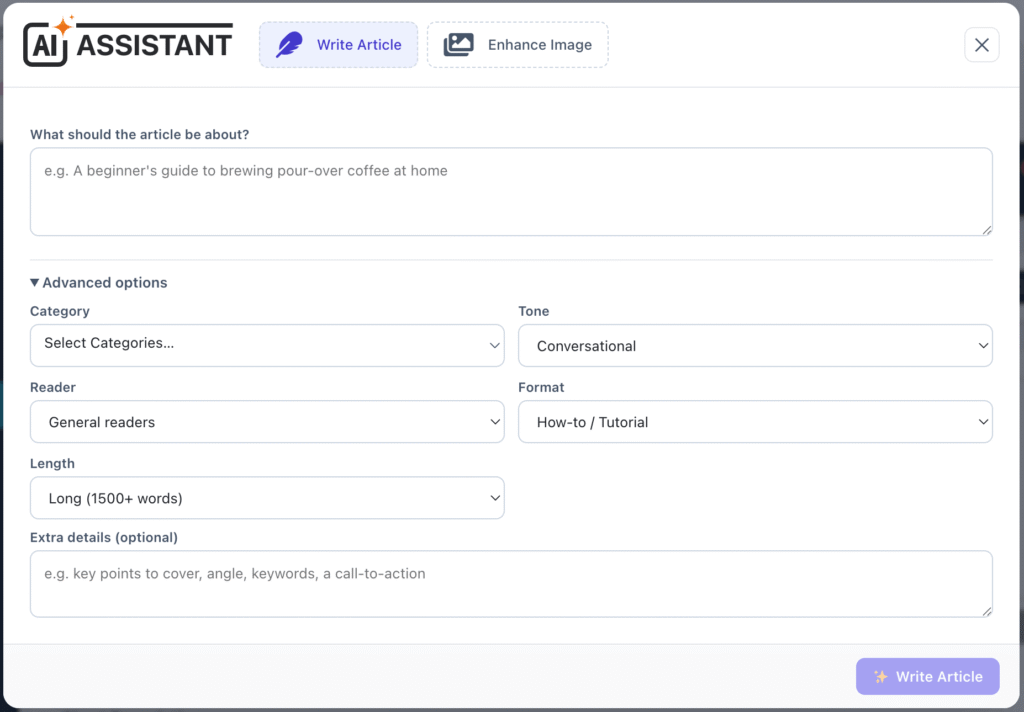
- Go to Articles > Add New / Edit and click ✨ Open AI Assistant at the top of the form (next to Add New).
- On the Write Article tab, describe what the article should be about, and optionally set the category, tone, reader, format (how-to, listicle, guide, opinion, news, review) and length, then click Write Article.
- Review the Title, Short description (intro) and Article body. Lock the ones you like, Regenerate the rest, or edit any field inline — then Apply a single field, or Apply All to fill the title, excerpt and content at once.
- To improve the featured image, click ✨ Enhance Image beneath the featured-image box (or the Enhance Image tab). Toggle one or more presets –
- Vibrant & Punchy
- Clean & Bright
- Cinematic Mood
- Minimal / Flat-lay
- Blog Header
you can combine several presets, describe the change, generate, then Apply to set it as the featured image.
4.5.Enhance media images
- Open Media from your dashboard menu.
- On any image row, click the Enhance with AI (magic wand) icon.
- A popup shows the Original on the left. Pick presets / type a prompt, then click Enhance to see the Enhanced version on the right.
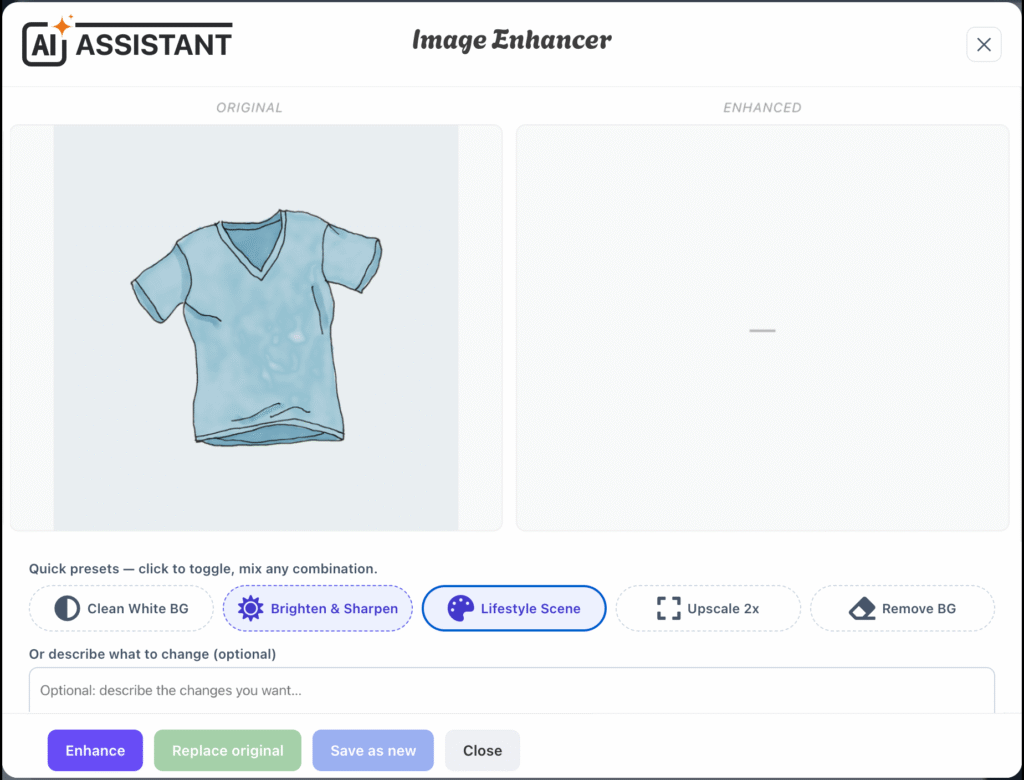
- Choose what to do:
- Replace original — overwrites the existing image in place (same file, same web address), so it updates everywhere the image is used.
⚠️ If the image is used by more than one product/post, you’ll get a warning listing them first — because they will all change. Confirm to proceed.
- Save as new — keeps the original and adds the enhanced image as a new file.
- Discard / Close — change nothing.
- Replace original — overwrites the existing image in place (same file, same web address), so it updates everywhere the image is used.
4.6.AI Usage report
Open AI Usage from vendor dashboard menu (or the View usage report link on the widget #4.1).
ℹ️ This page shows vendor’s own usage and is available to vendors and their staff. Marketplace admins don’t see this menu — admins review every vendor’s usage from the Vendors page (see #3.5).
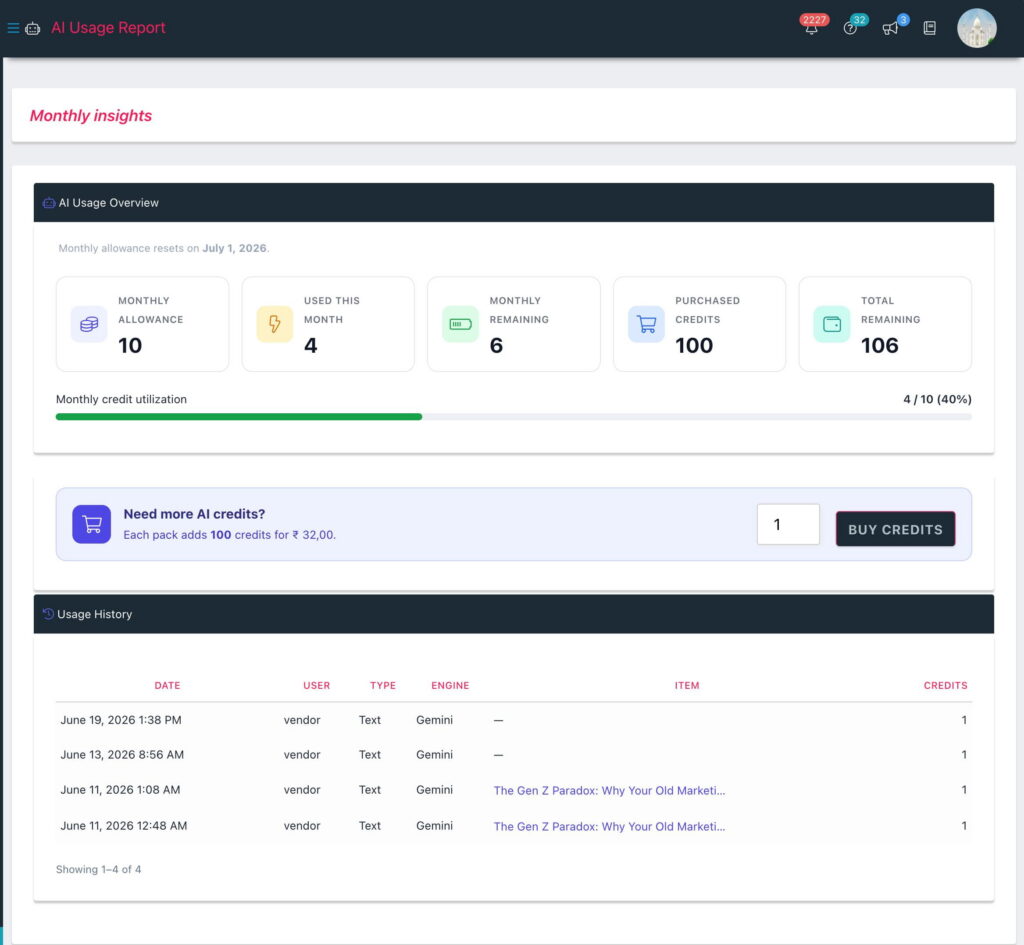
- Summary cards: Monthly allowance, Used this month, Monthly remaining, Purchased credits and Total remaining — with a monthly utilization bar, and the date your allowance resets shown just above the cards.
- Usage history: every request with its date, user, type (Text/Image), engine, the item it was for (product/article names link straight to their editor), and credits spent. Use the pager below the table to step through older entries — handy if a charge is ever queried.
4.7.Buy more credits
If the marketplace owner has enabled credit purchasing, you can top up when you run low:
- On your AI Usage report, use the Buy credits button — choose how many packs and check out.
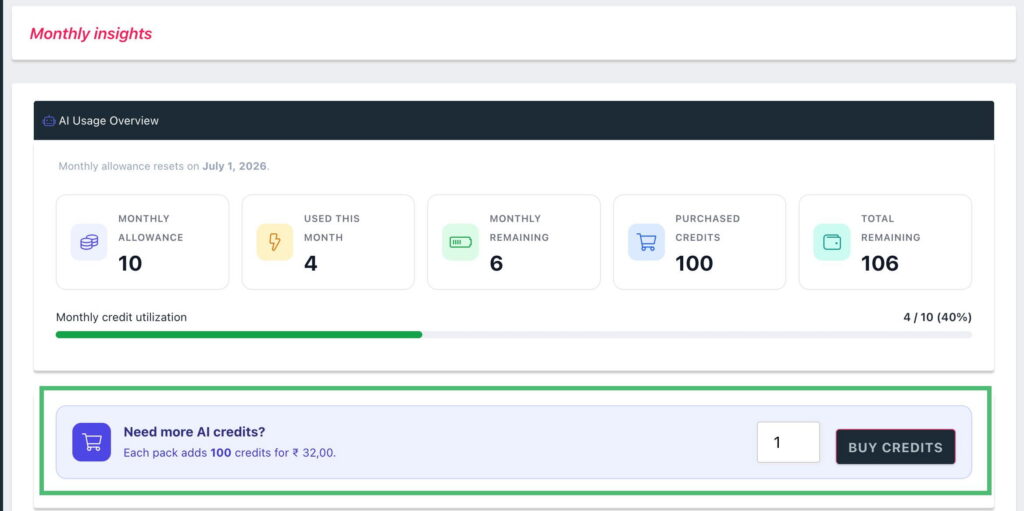
- If a generate/enhance is blocked for insufficient credits, the popup shows a Buy credits button that opens checkout in a new browser tab, so your in-progress prompt/results aren’t lost. Complete the purchase, return to the editor tab, and run the action again.
Purchased credits land in your Purchased credits balance — they never expire and are used automatically once your monthly allowance is gone.