
Go to WCFM > Settings and open the AI Suite section.
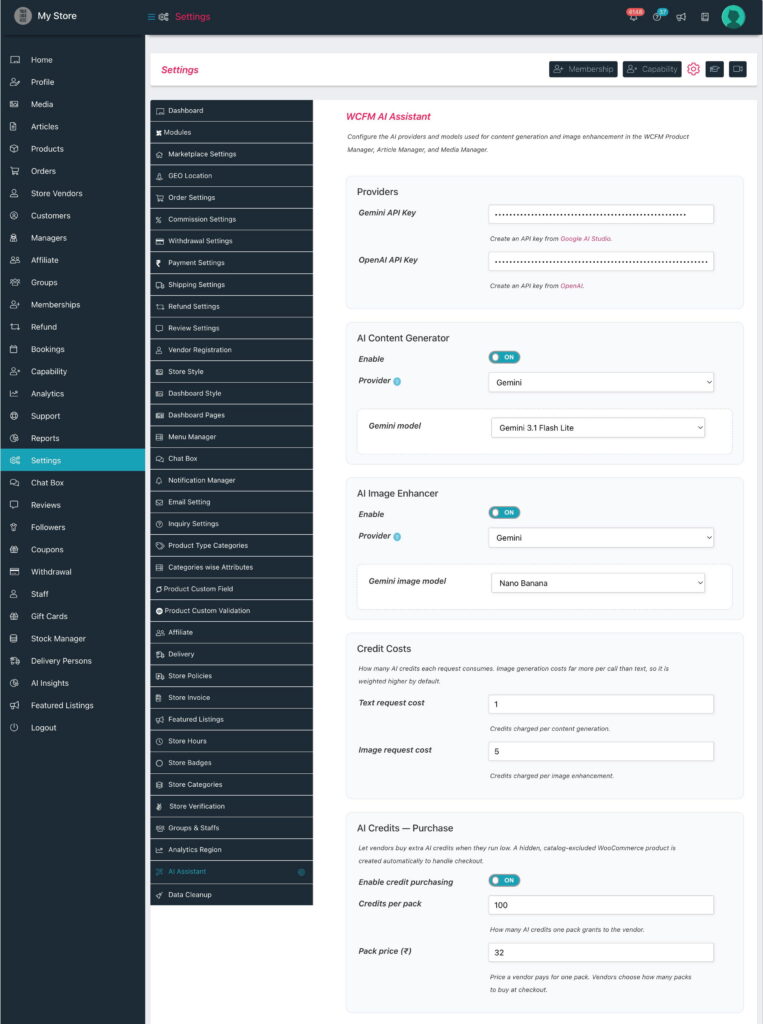
Fill it in top to bottom:
- Providers — paste your Gemini API Key and/or OpenAI API Key.
- AI Content Generator — turn Enable to ON, then pick the Provider (OpenAI or Gemini). The matching model field — OpenAI model or Gemini model — appears for the chosen provider. This drives all text writing: both product copy and articles.
- AI Image Enhancer — turn Enable to ON, then pick its Provider and the matching OpenAI image model / Gemini image model. This drives image enhancement everywhere — the product editor, the Article editor and the Media page.
- Credit Costs (Marketplace only) — Text request cost and Image request cost: how many credits each request spends. Defaults: Text = 1, Image = 10 (image generation costs the provider far more, hence the higher weight).
-
AI Credits — Purchase (Marketplace only) — optionally let vendors buy extra credits:
- Enable credit purchasing — turn ON to switch the feature on.
- Credits per pack — how many credits one pack grants the vendor (default 100).
- Pack price — what a vendor pays for one pack, in your store currency. Vendors choose how many packs to buy at checkout.
The plugin auto-creates a hidden, catalog-excluded WooCommerce product to handle checkout — you never manage it by hand. The vendor side is covered in #4.7.
Click Save at the bottom of the WCFM settings form.
ℹ️ Single-shop note: the Credit Costs and AI Credits — Purchase blocks appear only when WCFM Marketplace is active. In a WCFM-only shop the admin / shop managers have unlimited AI use, so there’s no credit economy to configure.