
If vendor publish Articles (blog posts), the AI Assistant works like the product one but with options tuned for blog writing rather than product copy.
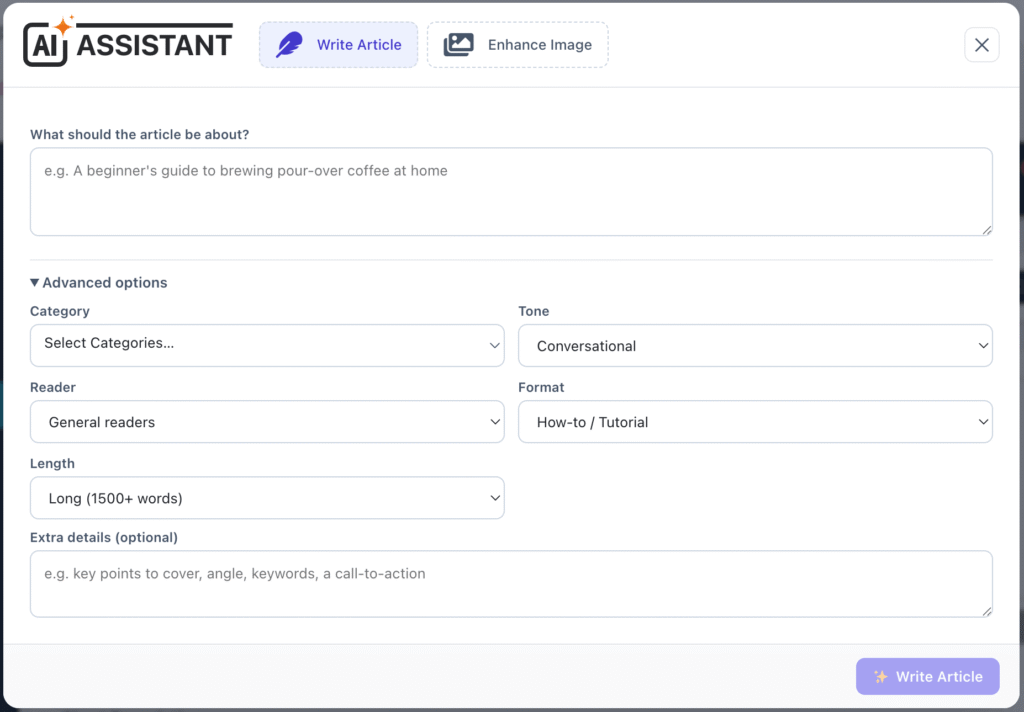
- Go to Articles > Add New / Edit and click ✨ Open AI Assistant at the top of the form (next to Add New).
- On the Write Article tab, describe what the article should be about, and optionally set the category, tone, reader, format (how-to, listicle, guide, opinion, news, review) and length, then click Write Article.
- Review the Title, Short description (intro) and Article body. Lock the ones you like, Regenerate the rest, or edit any field inline — then Apply a single field, or Apply All to fill the title, excerpt and content at once.
- To improve the featured image, click ✨ Enhance Image beneath the featured-image box (or the Enhance Image tab). Toggle one or more presets –
- Vibrant & Punchy
- Clean & Bright
- Cinematic Mood
- Minimal / Flat-lay
- Blog Header
you can combine several presets, describe the change, generate, then Apply to set it as the featured image.